How to Send Email Safely
Compose and send emails with dry-run preview, and understand the safety controls that prevent accidental sends.
Compose and send emails through your AI assistant with built-in safety controls: dry-run preview, rate limiting, and an optional recipient allowlist.
Preview Before Sending (Dry Run)
Always preview first to check the email looks right:
“Draft an email to sarah@company.com about the project update — don’t send it yet”
tool: send-email
params:
  to: "sarah@company.com"
  subject: "Project Alpha Update"
  body: "Hi Sarah,\n\nHere's the latest on Project Alpha..."
  dryRun: true
The dry run shows exactly what will be sent — recipients, subject, body — without actually sending. Review it, then ask your AI assistant to send.

Send an Email
“Send an email to sarah@company.com about the meeting tomorrow”
tool: send-email
params:
  to: "sarah@company.com"
  subject: "Meeting Tomorrow"
  body: "Hi Sarah,\n\nJust confirming our meeting tomorrow at 10am.\n\nCheers"
Because send-email is marked as destructive, your AI assistant will always ask for your confirmation before sending — even without dry run.
Send to Multiple Recipients
Use commas to separate addresses:
tool: send-email
params:
  to: "sarah@company.com, james@company.com"
  cc: "manager@company.com"
  subject: "Team Update"
body: "Hi team,\n\n..."| Field | Purpose |
|---|---|
to | Primary recipients |
cc | Carbon copy — visible to all |
bcc | Blind carbon copy — hidden from other recipients |
Set Email Importance
tool: send-email
params:
  to: "team@company.com"
  subject: "Urgent: Server outage"
  body: "..."
  importance: "high"
Options: normal (default), high, low.
Safety Controls
Confirmation Prompt
Every send triggers a confirmation prompt in your AI assistant. You must explicitly approve before the email leaves your outbox. This is enforced by the MCP destructiveHint annotation — it cannot be bypassed.
Rate Limiting
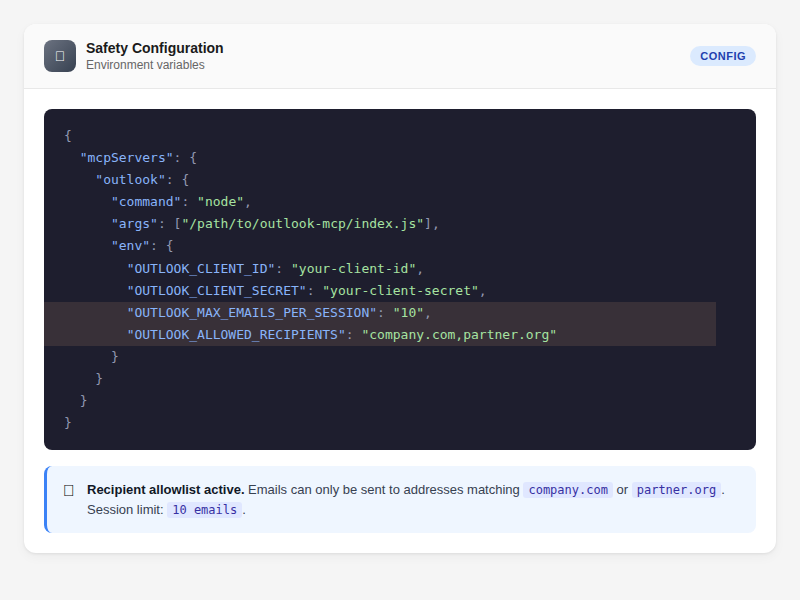
Set a per-session send limit to prevent runaway sends:
OUTLOOK_MAX_EMAILS_PER_SESSION=10Add this to your MCP server environment variables. Once the limit is reached, further sends are blocked until the session restarts.
Recipient Allowlist
Restrict who your AI assistant can send to:
OUTLOOK_ALLOWED_RECIPIENTS=company.com,partner.orgWith this set, emails can only be sent to addresses ending in @company.com or @partner.org. Sends to any other domain are blocked.
Save to Sent Items
By default, sent emails appear in your Sent Items folder. To suppress:
tool: send-email
params:
  to: "..."
  subject: "..."
  body: "..."
  saveToSentItems: false
Parameter Reference
| Parameter | What it does | Default |
|---|---|---|
to | Recipient addresses (comma-separated) | (required) |
subject | Email subject line | (required) |
body | Email body (plain text or HTML) | (required) |
cc | CC addresses (comma-separated) | — |
bcc | BCC addresses (comma-separated) | — |
importance | normal, high, or low | normal |
dryRun | Preview without sending | false |
saveToSentItems | Save to Sent Items folder | true |
Tips
- Always use
dryRun: truefor important emails to review before sending - Set
OUTLOOK_MAX_EMAILS_PER_SESSIONto prevent accidental bulk sends - Use
OUTLOOK_ALLOWED_RECIPIENTSin shared or automated environments - HTML is supported in the body — use it for formatted emails
Related
- Find Emails — search for emails to reply to
- Read Email Threads — read a thread before replying
- Batch Operations — bulk email operations
- Tools Reference — send-email

