

How to Access Shared Mailboxes
Read and organise shared mailboxes your account has been granted access to, such as team inboxes or service accounts.

Read and organise shared mailboxes like team inboxes, support queues, or service accounts that your Microsoft 365 account has access to.
Scope: shared-mailbox support covers reading and organising (search, read, export, attachments, flags/categories, moves, delta, conversations, folder management). Sending, drafts, replies, and forwards from a shared mailbox are not supported —
send-emailanddraftalways act on the signed-in user’s own mailbox.
Turn On Shared-Mailbox Support
Shared-mailbox support is opt-in and works with work/school (Microsoft 365) accounts only. Without it, sign-in requests the standard scopes and nothing changes for you.
- Add the setting to the MCP server’s environment (for example the
envblock of your.mcp.json):OUTLOOK_SHARED_MAILBOX=read— read, search, and export shared mailboxes (Mail.Read.Shared)OUTLOOK_SHARED_MAILBOX=true— also organise them: move, flag, categorise, mark read, and manage folders (addsMail.ReadWrite.Shared).readwriteand1mean the same.
- Restart the server.
- Re-authenticate so your token carries the new scopes:
auth action=authenticate force=true. Existing tokens never gain them on their own, because a token refresh only asks for the scopes you were granted at sign-in. - Check
auth action=about— the Shared mailboxes row shows whether each shared scope was actually granted.
Use the device-code flow (the default) to sign in. The browser flow (npm run auth-server) requests the configured scopes and has no fallback if your account or tenant rejects them. Personal Outlook.com accounts can’t be granted these scopes, so leave the setting unset there.
If your organisation blocks user consent, an administrator has to grant consent for the shared scopes. If they won’t, unset OUTLOOK_SHARED_MAILBOX and you’ll sign in with the standard scopes again.
While the setting is off, access-shared-mailbox behaves as it always has (a well-known folder name or folder ID, using whatever access your existing token has). Every other tool’s sharedMailbox parameter is refused with these setup steps.
Read from a Shared Mailbox
“Check the support inbox for new emails”
tool: access-shared-mailbox
params:
  sharedMailbox: "support@company.com"
This returns the 25 most recent emails from the shared mailbox’s inbox. email is accepted as an alias for sharedMailbox.
Discover the Folder Tree
“What folders does the support mailbox have?”
tool: access-shared-mailbox
params:
  sharedMailbox: "support@company.com"
  listFolders: true
This lists the folders you can reach, with their full paths, IDs and item counts. The listing is best-effort: if a branch couldn’t be traversed (depth limit, throttling, or a per-folder permission error), the output says so, so check for those warnings before concluding a folder doesn’t exist. folders action=list with sharedMailbox gives the same tree.
listFolders needs OUTLOOK_SHARED_MAILBOX to be set.
Browse a Specific Folder
Pass a well-known name, a custom or localised display name, or a nested path:
tool: access-shared-mailbox
params:
  sharedMailbox: "support@company.com"
  folder: "Inbox/Escalated/Priority"
Or use an exact folder ID from the listing, which skips name resolution:
tool: access-shared-mailbox
params:
  sharedMailbox: "support@company.com"
  folderId: "AAMkAGI2..."
Custom names and nested paths need OUTLOOK_SHARED_MAILBOX; with it off, folder must be a well-known name (inbox, sentitems, archive…) or you pass folderId.
Control the Number of Results
tool: access-shared-mailbox
params:
  sharedMailbox: "team@company.com"
  count: 10
  outputVerbosity: "minimal"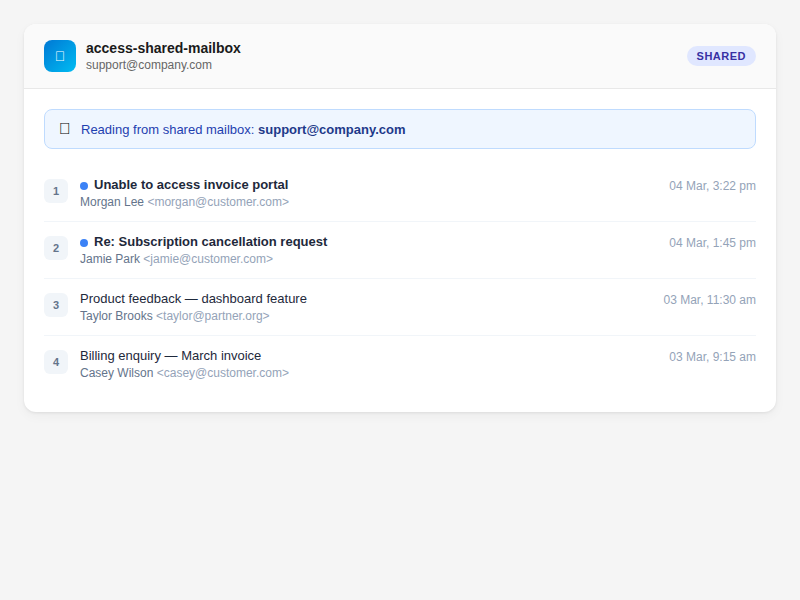
Search, Read and Export Shared Mail
For filtering and full message access, pass sharedMailbox (alias email) to the regular email tools:
tool: search-emails
params:
  sharedMailbox: "support@company.com"
  folder: "Inbox/Escalated"
  from: "vendor@example.com"
search-emails supports sharedMailbox in every mode: list and search, searchAllFolders, deltaMode, conversationId, groupByConversation and internetMessageId.
Message IDs belong to the mailbox they came from. When you open a message you found in a shared mailbox, pass the same sharedMailbox to:
read-email, includingheadersModefor forensic headersattachments(list, view, download)export(every target:message,messages,conversation,mime)
Leaving it out makes the tool look the ID up in your own mailbox, which fails with 404 ErrorInvalidMailboxItemId.
Organise a Shared Mailbox
With OUTLOOK_SHARED_MAILBOX=true, these accept sharedMailbox too:
update-email: mark read or unread, flag, unflag, completeapply-category: set, add or remove categories. The category names must already exist in the shared mailbox’s master list, becausemanage-categoryonly manages your own.folders: all five actions (list,create,move,stats,delete). Protected folders such as Inbox can’t be deleted, just as in your own mailbox.
tool: folders
params:
  action: "move"
  sharedMailbox: "support@company.com"
  emailIds: "AAMkAGI2...,AAMkAGI3..."
  targetFolder: "Inbox/Resolved"
A shared-mailbox write always stays in the shared mailbox. If the token lacks Mail.ReadWrite.Shared it fails (usually 403); it never falls back to your own mailbox.
Required Permissions
Your Azure app registration needs the Mail.Read.Shared permission to read a shared mailbox, and Mail.ReadWrite.Shared to organise it (move messages between folders, apply categories, flag, mark read, create/delete folders). Mail.Send.Shared is deliberately not requested, because sending from a shared mailbox isn’t supported:
- Go to Azure Portal → App registrations → your Outlook Assistant app
- Under API permissions, add the Microsoft Graph delegated permissions:
Mail.Read.Shared(read) andMail.ReadWrite.Shared(write) - Grant admin consent if required by your organisation
- Set
OUTLOOK_SHARED_MAILBOX(see Turn On Shared-Mailbox Support) and re-authenticate (auth action=authenticate force=true) so the token carries the new scopes — existing tokens won’t have them
Your Microsoft account must also have been granted access (Full Access / delegate) to the shared mailbox by your Exchange administrator.
Parameter Reference
access-shared-mailbox:
| Parameter | What it does | Default |
|---|---|---|
sharedMailbox | Email address of the shared mailbox (required; alias email) | — |
folder | Folder to read from: well-known name, display name or nested path | inbox |
folderId | Exact folder ID; takes precedence over folder | — |
listFolders | List the folder tree instead of messages | false |
count | Number of emails to return (max 50) | 25 |
outputVerbosity | minimal, standard, or full | standard |
The shared mailbox address must be a plain email address in printable ASCII (for example team@contoso.com). User GUIDs aren’t accepted.
Troubleshooting
| Problem | Cause | Fix |
|---|---|---|
| “Shared-mailbox support is turned off” | OUTLOOK_SHARED_MAILBOX isn’t set | Follow Turn On Shared-Mailbox Support |
| “Access denied” or 403 error | Missing Mail.Read.Shared (read) / Mail.ReadWrite.Shared (write) permission, or no delegate access | Add the permission in Azure Portal, check auth action=about, then re-authenticate with force=true |
| “Shared mailbox … not found, or you can’t access it” | Incorrect email address, no access granted, or (on a work account) the shared-mailbox scopes aren’t enabled: while OUTLOOK_SHARED_MAILBOX is off, the message adds how to turn them on | Verify the address; if the message says the scopes aren’t enabled, set OUTLOOK_SHARED_MAILBOX=read, restart and run auth action=authenticate force=true; otherwise check access with your Exchange admin |
Invalid mailbox "…" | The address isn’t a plain printable-ASCII email address | Retype it without spaces, look-alike characters, #, % or / |
| Empty results | Mailbox is empty or folder doesn’t exist | Try folder: "inbox", or listFolders: true to see what’s there |
404 ErrorInvalidMailboxItemId or “folder not found” on a read, move, categorise or flag | sharedMailbox was omitted, so the call addressed your own mailbox where the shared ID doesn’t exist | Pass the same sharedMailbox on every call that uses an ID from the shared mailbox |
403 access denied on a move/categorise/flag with sharedMailbox set | Token lacks Mail.ReadWrite.Shared (for example OUTLOOK_SHARED_MAILBOX=read) or delegate access is missing — the request stays shared-mailbox-scoped and fails; it does not fall back to your own mailbox | Set OUTLOOK_SHARED_MAILBOX=true, add the scope in Azure, grant delegate access, and re-authenticate |
Tips
access-shared-mailboxitself is read-only, so MCP clients that support annotations can auto-approve it- You can’t send, draft, reply, reply-all, or forward from a shared mailbox through Outlook Assistant — those tools always act on your own mailbox. Use the Outlook UI for send-as or send-on-behalf.
- Use
outputVerbosity: "minimal"for quick checks on high-volume shared inboxes - Mailbox settings, inbox rules and Focused Inbox always apply to your own mailbox
Related
- Find Emails — search options that also work with
sharedMailbox - Organise with Folders — folder actions
- Verify Your Connection — check permissions
- Azure Setup Guide — managing app permissions
- Tools Reference — access-shared-mailbox