

How to Connect Outlook to Your AI Assistant
Set up Outlook Assistant so your AI assistant can read and manage your email, calendar, and contacts.

Connect your Microsoft 365 or Outlook.com account so your AI assistant can search emails, manage your calendar, and work with contacts on your behalf.
Install Outlook Assistant
If you use the plugin in Claude Code, GitHub Copilot or Cursor (see Install the Plugin), skip this step: the plugin runs a pinned version of the server with npx.
Otherwise, install the package globally:
npm install -g @littlebearapps/outlook-assistantOr clone and install locally:
git clone https://github.com/littlebearapps/outlook-assistant.git
cd outlook-assistant
npm install
Register an Azure App
Outlook Assistant needs an Azure app registration to access the Microsoft Graph API. This is free and takes about 10 minutes.
Follow the full walkthrough in the Azure Setup Guide, or the short version:
- Go to Azure Portal → App registrations
- Click New registration (no redirect URI needed at this stage)
- Copy the Application (client) ID from the app’s Overview page. Browser flow only: under Certificates & secrets, also create a client secret and copy its Value (not the Secret ID). The default device code sign-in doesn’t use a secret.
- Under Authentication > Add a platform > Mobile and desktop applications — check
https://login.microsoftonline.com/common/oauth2/nativeclient - Under Authentication > Advanced settings — set “Allow public client flows” to Yes
- Under API permissions, add these Microsoft Graph delegated permissions:
offline_access— refresh tokens between sessionsUser.Read— basic profileMail.Read,Mail.ReadWrite,Mail.Send— email operationsCalendars.Read,Calendars.ReadWrite— calendar operationsContacts.Read,Contacts.ReadWrite— contact managementMailboxSettings.ReadWrite— settings, categories, auto-repliesPeople.Read— people search
Optional (work/school accounts only):
Mail.Read.Shared— shared mailbox read accessMail.ReadWrite.Shared— shared mailbox writes (move/categorise/flag/mark-read)Place.Read.All— meeting room search (requires admin consent)
The two .Shared scopes are only requested when you opt in with OUTLOOK_SHARED_MAILBOX — see Access Shared Mailboxes.
Common mistake: If you create a client secret, copy its Value, not the Secret ID. Using the wrong one causes
AADSTS7000215errors.
Add to Your AI Tool
Which install suits you, and what each client supports, is summarised in Supported Clients and Their Limits.
Install the Plugin (Claude Code, GitHub Copilot, Cursor)
The plugin runs the server and adds two safety layers the server can’t provide on its own: the using-outlook-assistant skill, which teaches your assistant the safety rules, and a hook that asks you before anything that reaches other people, deletes something or keeps acting.
-
Claude Code:
claude plugin marketplace add littlebearapps/outlook-assistant
claude plugin install outlook-assistant@littlebearapps
Claude Code asks for the plugin’s settings when you enable it, including your client ID and the hook’s Confirmation level.
-
GitHub Copilot CLI:
copilot plugin marketplace add littlebearapps/outlook-assistant
copilot plugin install outlook-assistant@littlebearapps
VS Code’s Copilot agent reads the same plugin; that hasn’t been checked by hand yet.
-
Cursor (v3.14.0 or later): Cursor loads
plugins/outlook-assistantas a Cursor plugin. In Cursor CLI, pass it with--plugin-dir. The v3.13.0 plugin can’t sign in from Cursor (AADSTS900023); use the manual.cursor/mcp.jsonfrom the README instead.
Copilot and Cursor have no plugin settings, so give your client ID when you sign in (see Clients That Can’t Set Environment Variables), and set the hook’s confirmation level with the OUTLOOK_CONFIRM_LEVEL environment variable.
The sections below add the server by hand instead. That works in any MCP client, but you get the server’s own checks without the plugin’s hook.
Claude Desktop
Add to your claude_desktop_config.json:
{
  "mcpServers": {
    "outlook": {
      "command": "npx",
      "args": ["-y", "@littlebearapps/outlook-assistant"],
      "env": {
        "OUTLOOK_CLIENT_ID": "your-client-id",
        "OUTLOOK_CLIENT_SECRET": "your-secret-value"
      }
    }
  }
}
Claude Code
Add with the CLI:
claude mcp add outlook \
  -e OUTLOOK_CLIENT_ID=your-client-id \
  -e OUTLOOK_CLIENT_SECRET=your-secret-value \
  -- npx -y @littlebearapps/outlook-assistant
Or add to your .mcp.json or project settings:
{
  "mcpServers": {
    "outlook": {
      "command": "npx",
      "args": ["-y", "@littlebearapps/outlook-assistant"],
      "env": {
        "OUTLOOK_CLIENT_ID": "your-client-id",
        "OUTLOOK_CLIENT_SECRET": "your-secret-value"
      }
    }
  }
}
Other MCP Clients
Any MCP-compatible client can use Outlook Assistant, including VS Code, Cursor, Windsurf, Codex CLI and Gemini CLI (the README has config snippets for several). Set the command to npx -y @littlebearapps/outlook-assistant and pass the environment variables in the client’s env settings. The MCP server doesn’t read a .env file.
If your client supports Agent Skills, you can also copy the skill folder, plugins/outlook-assistant/skills/using-outlook-assistant/, to wherever it loads skills from.
OUTLOOK_CLIENT_SECRET is only used by the browser redirect flow. With device code sign-in (the default) you can leave it out and set just OUTLOOK_CLIENT_ID.
Clients That Can’t Set Environment Variables
Some clients, such as the GitHub Copilot and Cursor plugins, install the server with a fixed configuration and give you nowhere to enter OUTLOOK_CLIENT_ID. In that case, give the client ID to your AI assistant when you sign in:
“Connect to my Outlook account. My Azure Application (client) ID is 00000000-0000-0000-0000-000000000000”
Your AI assistant calls the auth tool with action: authenticate, clientId: <your ID>. If you don’t mention the ID, sign-in reports that OUTLOOK_CLIENT_ID is not configured and your assistant should ask you for it.
- The ID is saved to
~/.outlook-assistant-config.json(owner read/write only) and used from then on, including for token refresh, without restarting the server. It identifies your app registration and isn’t a secret. - Only device code sign-in works this way. The browser flow also needs the client secret, which the auth server reads from its own environment.
OUTLOOK_CLIENT_IDtakes precedence when it’s set. If it holds a different ID, theauthtool refuses the new one rather than saving an ID that would be ignored. Change or remove the environment variable instead.auth action=aboutshows whether the client ID comes from the environment or the saved file (never the ID itself). To forget a saved ID, delete~/.outlook-assistant-config.json.
Optional settings such as OUTLOOK_AUTH_AUDIENCE, OUTLOOK_DEFAULT_TIMEZONE, the send safety belts and OUTLOOK_SHARED_MAILBOX go in the same env block — see the README’s environment variables table.
Trying It Out Safely
For your first sessions, consider adding "OUTLOOK_READ_ONLY": "true" to the env block (in the Claude Code plugin, turn on Read-only mode instead). Your assistant can then search and read mail, calendar and contacts, but every call that would change something (sending, drafting, moving, flagging, deleting, rules, settings, saving attachments or exports) is refused before it runs, and nothing is changed. Signing in still works. auth action=about shows whether read-only mode is on. Remove the setting and restart the server when you’re ready to let it act for you.
Authenticate for the First Time
Device Code Flow (Recommended)
The device code flow works everywhere — no auth server, no SSH tunnels, no port forwarding. Ideal for remote, headless, and standard setups alike.
Azure prerequisite: In Azure Portal > App registrations > your app > Authentication > Advanced settings, set “Allow public client flows” to Yes.
- Ask your AI assistant to authenticate:
“Connect to my Outlook account”
Your AI assistant will call the auth tool with action: authenticate. You’ll receive a short code and a URL.
- Visit the URL (https://microsoft.com/devicelogin) in a private/incognito browser window, on any device — it doesn’t need to be the same machine running Outlook Assistant.
Use incognito/private browsing to avoid cached sessions from previous OAuth flows interfering with device code sign-in.
- Enter the code, sign in with your Microsoft account, and grant permissions.

- Tell your AI assistant you’ve completed sign-in. It will call
authwithaction: device-code-completeto finish authentication. Tokens are saved to~/.outlook-assistant-tokens.json.
Server restarts (v3.7.2+): Device code state is persisted to disk, so
device-code-completeworks even if the MCP server restarts between steps 1 and 4.
Browser Redirect Flow (Alternative)
If you prefer the traditional OAuth browser redirect (e.g. for localhost development):
- Start the auth server. From a source checkout:
npm run auth-serverFrom a global npm install:
node "$(npm root -g)/@littlebearapps/outlook-assistant/outlook-auth-server.js"The auth server needs
OUTLOOK_CLIENT_IDandOUTLOOK_CLIENT_SECRETenvironment variables. Either:
- Create a
.envfile in the directory you start it from (copy from.env.example), or- Export the variables in your shell before running the command
The
outlook-assistantcommand itself only accepts--versionand--help, sonpx @littlebearapps/outlook-assistant auth-serverexits with an error.The browser flow requests the configured scopes with no fallback. If you’ve enabled
OUTLOOK_SHARED_MAILBOX, use the device code flow instead.
- Ask your AI assistant:
“Connect to my Outlook account using browser auth”
Your AI assistant will call the auth tool with action: authenticate, method: browser and return a URL.
-
Open the URL in your browser, sign in, and grant permissions. After granting access, the browser redirects to
localhost:3333and tokens are saved automatically to~/.outlook-assistant-tokens.json. -
You can stop the auth server after authentication succeeds.
Understanding the Processes
| Process | Purpose | When to run |
|---|---|---|
MCP server (index.js) | Handles all 22 Outlook tools | Always — your MCP client starts it automatically |
Auth server (outlook-auth-server.js) | Handles browser OAuth redirect flow | Only if using method=browser during authentication |
Key points:
- With device code flow (default), you only need the MCP server — no auth server needed at all.
- The auth server is only required for the browser redirect flow. It runs on port 3333 to receive the OAuth callback.
- Tokens auto-refresh in the background. You rarely need to re-authenticate (only after ~90 days of inactivity).
Verify It’s Working
Ask your AI assistant:
“Check my Outlook connection status”
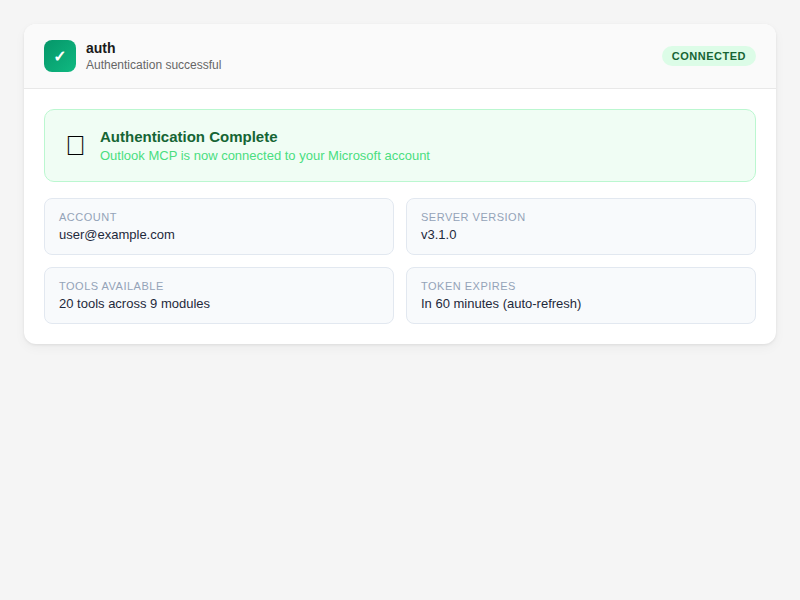
The auth tool is called with action: status. You should see “Authenticated and ready” with the time until the token expires. To confirm which mailbox is connected, ask for the server info (auth with action: about).
Then try a simple read:
“Show me my last 5 emails”
If you see your recent emails, everything is connected.
Troubleshooting
| Problem | Solution |
|---|---|
| “OUTLOOK_CLIENT_ID is not configured” | Set OUTLOOK_CLIENT_ID in your client’s env block, or give your assistant the Application (client) ID so it can call auth action=authenticate clientId=<id> (see Clients That Can’t Set Environment Variables) |
AADSTS7000215 (invalid secret) | Use the secret Value, not the Secret ID |
EADDRINUSE :3333 | Run npx kill-port 3333 then restart the auth server |
| Auth URL doesn’t open | Browser flow only: start the auth server first (npm run auth-server from source). The default device code flow uses microsoft.com/devicelogin and needs no auth server |
unrecognised argument when starting the server | The outlook-assistant command only accepts --version and --help; see the browser-flow steps above for starting the auth server |
| Permissions error after login | Check API permissions in Azure Portal and grant admin consent if required |
| Token file not found | Tokens are stored at ~/.outlook-assistant-tokens.json — check the file exists after auth |
Related
- Azure Setup Guide — full Azure walkthrough with screenshots
- Verify Your Connection — check auth status and re-authenticate
- Supported Clients and Their Limits — what the skill and safety hook do in each client
- Find Emails — your first search after connecting
- Tools Reference — all 22 tools with parameters


