

How to Send Email Safely
Compose and send emails with dry-run preview, and understand the safety controls that prevent accidental sends.

Compose and send emails through your AI assistant with built-in safety controls: dry-run preview, rate limiting, and an optional recipient allowlist.
Check Recipients Before Sending
Before sending to unfamiliar recipients or large groups, check for potential issues:
“Check if sarah@company.com and team@company.com are available before I send”
tool: get-mail-tips
params:
  recipients: ["sarah@company.com", "team@company.com"]
This checks for out-of-office, full mailboxes, delivery restrictions, moderation, external recipients, and group sizes. See Check Recipients Before Sending for the full guide.
You can also combine this with dry-run for a complete pre-send review:
tool: send-email
params:
  to: "sarah@company.com"
  subject: "Project Update"
  body: "Hi Sarah..."
  dryRun: true
  checkRecipients: true
Without dryRun, checkRecipients: true refuses to send when the tips show an out-of-office reply, a full mailbox, a delivery restriction, an external recipient or a group with external members. The error lists what was flagged; nothing is sent. Once you’ve seen the warnings, repeat the call with acknowledgeWarnings: true to send anyway. Personal Outlook.com accounts return no tips, and no warnings is not proof the email will be delivered. See When send-email Refuses to Send.
Preview Before Sending (Dry Run)
Always preview first to check the email looks right:
“Draft an email to sarah@company.com about the project update — don’t send it yet”
tool: send-email
params:
  to: "sarah@company.com"
  subject: "Project Alpha Update"
  body: "Hi Sarah,\n\nHere's the latest on Project Alpha..."
  dryRun: true
The dry run shows exactly what will be sent — recipients, subject, body — without actually sending. Review it, then ask your AI assistant to send.

Send an Email
“Send an email to sarah@company.com about the meeting tomorrow”
tool: send-email
params:
  to: "sarah@company.com"
  subject: "Meeting Tomorrow"
  body: "Hi Sarah,\n\nJust confirming our meeting tomorrow at 10am.\n\nCheers"
send-email is marked as destructive, so clients that honour MCP annotations (such as Claude Code with its default permissions) ask for your confirmation before sending, even without dry run. Whether you’re asked depends on your client and its permission settings — see Confirmation Prompt below.
Send to Multiple Recipients
Use commas to separate addresses:
tool: send-email
params:
  to: "sarah@company.com, james@company.com"
  cc: "manager@company.com"
  subject: "Team Update"
body: "Hi team,\n\n..."| Field | Purpose |
|---|---|
to | Primary recipients |
cc | Carbon copy — visible to all |
bcc | Blind carbon copy — hidden from other recipients |
Set Email Importance
tool: send-email
params:
  to: "team@company.com"
  subject: "Urgent: Server outage"
  body: "..."
  importance: "high"
Options: normal (default), high, low.
Safety Controls
Confirmation Prompt
send-email carries the MCP destructiveHint annotation. Annotations are hints: the server sets them, and your MCP client decides what to do with them. Clients that honour them prompt before a destructive tool runs, but a client can also be configured to auto-approve the tool or to run in a mode that skips prompts, and then the email is sent without asking. Keep send-email and draft on “ask” in your client’s permission settings if you want to approve every send.
In Claude Code, send-email (and create-event) also carry the anthropic/requiresUserInteraction flag, so Claude Code asks before every call, dry runs included, even in auto-accept or bypass modes. Other clients ignore this flag. draft doesn’t carry it, so draft action=send follows your normal permission settings.
If you installed the Outlook Assistant plugin, its safety hook (unless its confirmation level is off) also asks before send-email and draft action=send, with a plain-English reason such as “Sends an email to sarah@company.com, subject ‘Project Update’. It can’t be unsent.” Dry-run previews pass without a prompt from the hook. The plugin’s using-outlook-assistant skill tells your assistant to draft first and send only when you ask. The hook runs in Claude Code, GitHub Copilot and (with limits) Cursor; see Supported Clients and Their Limits and the plugin README.
On the server side, send-email offers dryRun previews and enforces the session rate limit and the recipient allowlist below, whatever your client does.
Read-Only Mode
To rule out sending altogether, set:
OUTLOOK_READ_ONLY=trueThe server then refuses every call that would change something, including send-email, every draft action and dryRun previews, before anything reaches Microsoft. Reads still work. Remove it and restart the server to send again.
Rate Limiting
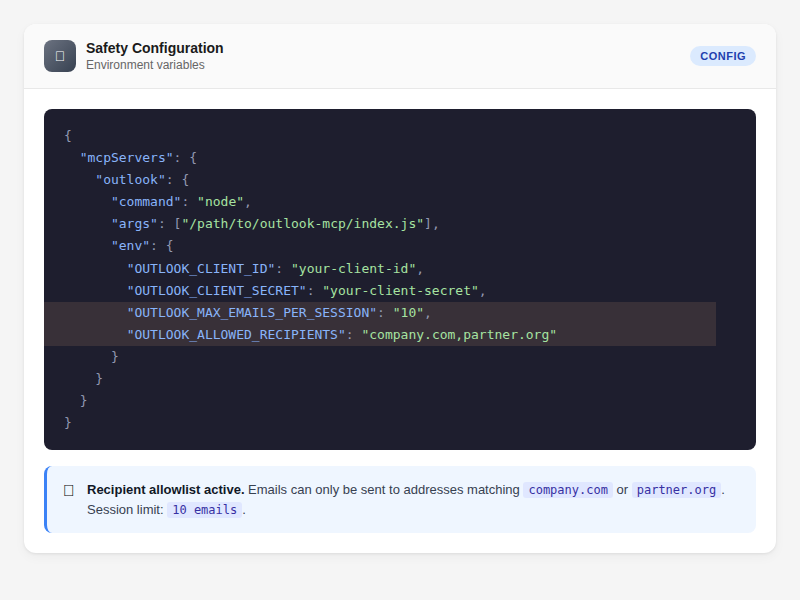
Set a per-session send limit to prevent runaway sends:
OUTLOOK_MAX_EMAILS_PER_SESSION=10Add this to your MCP server environment variables. Once the limit is reached, further sends are refused with a “Rate limit reached” error until the server restarts. Sending a draft (draft action=send) counts towards the same limit. The value is also the default cap for draft create/update/reply/reply-all/forward, manage-rules and create-event, each counted separately (dry runs don’t count); set OUTLOOK_MAX_<TOOL>_PER_SESSION (for example OUTLOOK_MAX_SEND_EMAIL_PER_SESSION) to override one tool.
0means blocked, not unlimited. Leave the setting unset for no limit. Since v3.14.1,0refuses every real call to that tool (dry runs still preview), and so does any value that isn’t a whole number. Before v3.14.1,0meant no limit. To let the AI write drafts but never send, setOUTLOOK_MAX_SEND_EMAIL_PER_SESSION=0andOUTLOOK_MAX_DRAFT_PER_SESSION=20.auth action=aboutlists each tool’s limit, and blocked tools are named in the instructions the server gives the AI.
Recipient Allowlist
Restrict who your AI assistant can send to:
OUTLOOK_ALLOWED_RECIPIENTS=company.com,partner.orgWith this set, emails can only be sent to addresses ending in @company.com or @partner.org. Sends to any other domain are blocked. An entry with an @ (for example boss@partner.org) allows that one address.
Each recipient must be a single plain address. While the allowlist is set, a string such as someone@other.org;alice@company.com or Alice <alice@company.com> is refused, even though it ends with an allowed domain: separate addresses with commas and leave out display names.
The allowlist applies to:
send-email:to,ccandbccdraft: create, update and forward; reply and reply-all (the recipients Graph fills in; a refused draft is deleted); and the draft’s current recipients when you send itmanage-rules:forwardToandredirectTocreate-event: every attendee, rooms includedmanage-eventaction=update: the whole attendee list you set
It does not apply to cancellation messages (manage-event cancel, or deleting a meeting you organised), decline responses (manage-event decline), updates sent to attendees already on an event when you change other fields, or automatic replies set with mailbox-settings, including replies to external senders. A refused call changes nothing, and a dryRun reports the same refusal.
Save to Sent Items
By default, sent emails appear in your Sent Items folder. To suppress:
tool: send-email
params:
  to: "..."
  subject: "..."
  body: "..."
  saveToSentItems: false
Parameter Reference
| Parameter | What it does | Default |
|---|---|---|
to | Recipient addresses (comma-separated) | (required) |
subject | Email subject line | (required) |
body | Email body (plain text or HTML) | (required) |
cc | CC addresses (comma-separated) | — |
bcc | BCC addresses (comma-separated) | — |
importance | normal, high, or low | normal |
dryRun | Preview without sending | false |
checkRecipients | Check recipients for issues before sending; flagged sends are refused | false |
acknowledgeWarnings | Send anyway after checkRecipients flagged recipients (use only once you’ve seen the warnings) | false |
saveToSentItems | Save to Sent Items folder | true |
Draft Before Sending
For important emails, consider saving as a draft first — then review in Outlook before sending:
tool: draft
params:
  action: "create"
  to: "sarah@company.com"
  subject: "Project Update"
  body: "Hi Sarah..."
Then send when ready: draft(action: "send", id: "draft-id"). See Create and Manage Email Drafts for the full guide.
Tips
- Use
checkRecipients: truewithdryRun: truefor a complete pre-send review - For emails that need careful review, use the
drafttool instead — it saves a real draft in Outlook - Always use
dryRun: truefor important emails to review before sending - Set
OUTLOOK_MAX_EMAILS_PER_SESSIONto prevent accidental bulk sends (0blocks sending entirely; unset means no limit) - Use
OUTLOOK_ALLOWED_RECIPIENTSin shared or automated environments - HTML is supported in the body — use it for formatted emails
Related
- Create and Manage Email Drafts — save drafts for review before sending
- Check Recipients Before Sending — full mail tips guide
- Find Emails — search for emails to reply to
- Read Email Threads — read a thread before replying
- Batch Operations — bulk email operations
- Tools Reference — send-email


