
Install and onboard
This tutorial walks you through installing Untether, creating a Telegram bot, and generating your config file.

This tutorial walks you through installing Untether, creating a Telegram bot, and generating your config file. Once set up, you can send coding tasks from your phone while you’re out, review results on your tablet, or keep working from your laptop — anywhere Telegram runs.
What you’ll have at the end: A working ~/.untether/untether.toml with your bot token, chat ID, workflow settings, and default engine.
1. Install Python and uv
Install uv, the modern Python package manager:
curl -LsSf https://astral.sh/uv/install.sh | shInstall Python 3.12 or newer with uv (3.14 recommended):
uv python install 3.142. Install Untether
uv tool install -U untetherPrefer pipx? pipx install untether works too (Python 3.12+).
Verify it’s installed:
untether --versionYou should see the installed version number (e.g. 0.36.0).
3. Install agent CLIs
Untether shells out to agent CLIs. Install the ones you plan to use (or install them all now):
Codex
npm install -g @openai/codexUntether uses the official Codex CLI, so your existing ChatGPT subscription applies. Run codex and sign in with your ChatGPT account.
Claude Code
npm install -g @anthropic-ai/claude-codeUntether uses the official Claude Code CLI, so your existing Claude subscription applies. Run claude and log in with your Claude account. Untether defaults to subscription billing unless you opt into API billing in config.
macOS credentials
On macOS, Claude Code stores OAuth credentials in macOS Keychain rather than a plain-text file. Untether handles both automatically — just make sure you’ve signed in to Claude Code at least once (run
claudeand follow the login prompt) before starting Untether.
OpenCode
npm install -g opencode-ai@1Untether drives the OpenCode 1.x CLI (npm opencode-ai). OpenCode 2.x (npm @opencode/cli, whose binary is also called opencode) isn’t supported yet: it runs prompts on a shared background service outside Untether’s control, so Untether checks opencode --version before each run and refuses 2.x with a 🛑 OpenCode 2.x isn't supported yet message and the commands to switch back (#970).
OpenCode supports logging in with Anthropic for your Claude subscription or with OpenAI for your ChatGPT subscription, and it can connect to 75+ providers via Models.dev (including local models).
Pi
npm install -g @mariozechner/pi-coding-agentPi can authenticate via a provider login or use API billing. You can log in with Anthropic (Claude subscription), OpenAI (ChatGPT subscription), GitHub Copilot, Google Cloud Code Assist (Gemini CLI), or Antigravity (Gemini 3, Claude, GPT-OSS), or choose API billing instead.
Gemini CLI ⚠️ deprecated
Deprecated — don’t install for new setups
Google ended Gemini CLI support for individual accounts (free, Google AI Pro and Ultra) on 18 June 2026 (Google’s announcement), directing users to Antigravity CLI. On those accounts the CLI fails to authenticate outright (
IneligibleTierError). Worse, under Untether the subprocess hangs rather than exiting, so runs stall for ~10 minutes until the watchdog cancels them. Enterprise / Google Cloud licences may still work, but Untether no longer verifies this.The
geminiengine is still included but deprecated and no longer supported: no bug fixes, no testing, and it may be removed in a future release. Antigravity CLI support is planned as a separateantigravityengine in v0.36.1 (#558).
npm install -g @google/gemini-cliGemini CLI needs a paid Gemini API key (Google AI Studio or Vertex AI) or an Enterprise / Google Cloud licence; individual Google accounts can no longer sign in (IneligibleTierError). Supports plan mode, sandboxing, and automatic model routing (Pro for planning, Flash for implementation).
Headless trust
Untether runs Gemini with
--skip-trustby default (v0.35.3+, #471) so projects outside~/.gemini/trustedFolders.jsonwork in headless mode. Set[gemini] skip_trust = falseinuntether.tomlif you’d rather enforce Gemini’s project-local trust gate.
AMP ⚠️ deprecated
Deprecated — don’t install for new setups
Untether’s AMP integration is still included but deprecated and no longer supported: no bug fixes, no testing, and it may be removed in a future release. AMP remotely refuses clients it considers out of date (
426 This version of Amp is no longer supported), so a refused run fails within seconds. Untether does not track AMP’s update cadence, so a working setup can stop working without notice.This is a decision about our integration, not about AMP itself.
npm install -g @sourcegraph/ampAMP is the Sourcegraph coding agent. Run amp login to authenticate. Supports mode selection (--mode deep|free|rush|smart), thread sharing, and a rich permission system.
4. Run onboarding
Start Untether without a config file. It will detect this and launch the setup wizard:
untetherYou’ll see:
step 1: bot token

? do you already have a bot token from @BotFather? (yes/no)
If you don’t have a bot token yet, answer n and Untether will show you the steps.
5. Create a Telegram bot
If you answered n, follow these steps (or skip to step 6 if you already have a token):
- Open Telegram and message @BotFather
- Send
/newbotor use the mini app - Choose a display name (the obvious choice is “untether”)
- Choose a username ending in
bot(e.g.,my_untether_bot)
You
/newbot
BotFather
Alright, a new bot. How are we going to call it? Please choose a name for your bot.
You
untether
BotFather
Good. Now let’s choose a username for your bot…
BotFather will congratulate you on your new bot and will reply with your token:
Done! Congratulations on your new bot. You will find it at
t.me/my_untether_bot. You can now add a description, about
section and profile picture for your bot, see /help for a
list of commands.

Use this token to access the HTTP API:
<BOT_ID>:<BOT_TOKEN>

Keep your token secure and store it safely, it can be used
by anyone to control your bot.
Copy the token (the <BOT_ID>:<BOT_TOKEN> part).
Keep your token secret
Anyone with your bot token can control your bot. Don’t commit it to git or share it publicly.
6. Enter your bot token
Paste your token when prompted:
? paste your bot token: ****
  validating...
  connected to @my_untether_bot
Untether validates the token by calling the Telegram API. If it fails, double-check you copied the full token.
7. Pick your workflow
Untether shows three workflow previews:
assistant
ongoing chat
workspace
topics per branch
handoff
reply to continue
codex resume abc123
codex resume def456
codex resume abc123
? how will you use untether?
 ❯ assistant (ongoing chat, /new to reset)
   workspace (projects + branches, i'll set those up)
   handoff (reply to continue, terminal resume)
Each choice automatically configures conversation mode, topics, and resume lines:
| Workflow | Best for | What it does |
|---|---|---|
| assistant | Single developer, private chat | Chat mode (auto-resume), topics off, resume lines hidden. Use /new to start fresh. |
| workspace | Teams, multiple projects/branches | Chat mode, topics on, resume lines hidden. Each topic binds to a repo/branch. |
| handoff | Terminal-based workflow | Stateless (reply-to-continue), resume lines always shown. Copy resume line to terminal. |
Not sure which to pick?
Start with assistant (recommended). You can always change settings later in your config file.
8. Connect your chat
Depending on your workflow choice, Untether shows different instructions:
For assistant or handoff:
step 3: connect chat

  1. open a chat with @my_untether_bot
  2. send /start
  waiting for message...
For workspace:
step 3: connect chat

  set up a topics group:
  1. create a group and enable topics (settings → topics)
  2. add @my_untether_bot as admin with "manage topics"
  3. send any message in the group
  waiting for message...
Once Untether receives your message:
got chat_id 123456789 for @yourusername (private chat)Workspace requires a forum group
If you chose workspace and the chat isn’t a forum-enabled supergroup with proper bot permissions, Untether will warn you and offer to switch to assistant mode instead.
9. Choose your default engine
Untether scans your PATH for installed agent CLIs:
step 4: default engine

untether runs these engines on your computer. switch anytime with /agent.

  engine    status         install command
  ───────────────────────────────────────────
  codex     ✓ installed
  claude    ✓ installed
  opencode  ✗ not found    npm install -g opencode-ai@1
  pi        ✗ not found    npm install -g @mariozechner/pi-coding-agent
  gemini    ✗ not found    npm install -g @google/gemini-cli
  amp       ✗ not found    npm install -g @sourcegraph/amp

? choose default engine:
 ❯ codex
   claude
Only installed engines are offered as the default. The table also lists gemini and amp, which still load but are deprecated and no longer supported, so pick Claude Code, Codex, OpenCode or Pi. If no engine is installed, the wizard tells you to install one and rerun untether --onboard (you can still save the config). You can switch engines per-message with /codex, /claude, etc., or change the default anytime via /config in Telegram.
10. Choose your workflow mode
Untether supports three workflow modes that control how conversations continue:
| Mode | Best for | How it works |
|---|---|---|
| Assistant | Solo dev, private chat | Messages auto-resume your last session. Use /new to start fresh. (recommended) |
| Workspace | Teams, multiple projects | Forum topics, each bound to a project/branch. Independent sessions per topic. |
| Handoff | Terminal-first workflow | Every message is a new run. Resume lines shown for copying to terminal. |
These are the workflows you picked between in step 7; the wizard only changes your choice if you picked workspace and the group fails the topics check, and you then choose to switch to assistant. You can change modes later by editing three settings in your config file — see Choose a workflow mode for details.
11. Save your config
step 5: save config

? save config to ~/.untether/untether.toml? (yes/no)
Press y or Enter to save. You’ll see:
✓ setup complete. starting untether...

  next steps:
  • send a message to test: what is 2+2?
  • change settings from telegram: /config
  • enable voice notes: add voice_transcription = true to config
  • set up projects: see littlebearapps.com/help/untether/projects/
  • bot is locked to your account (user id 123456789)
Untether is now running and listening for messages!
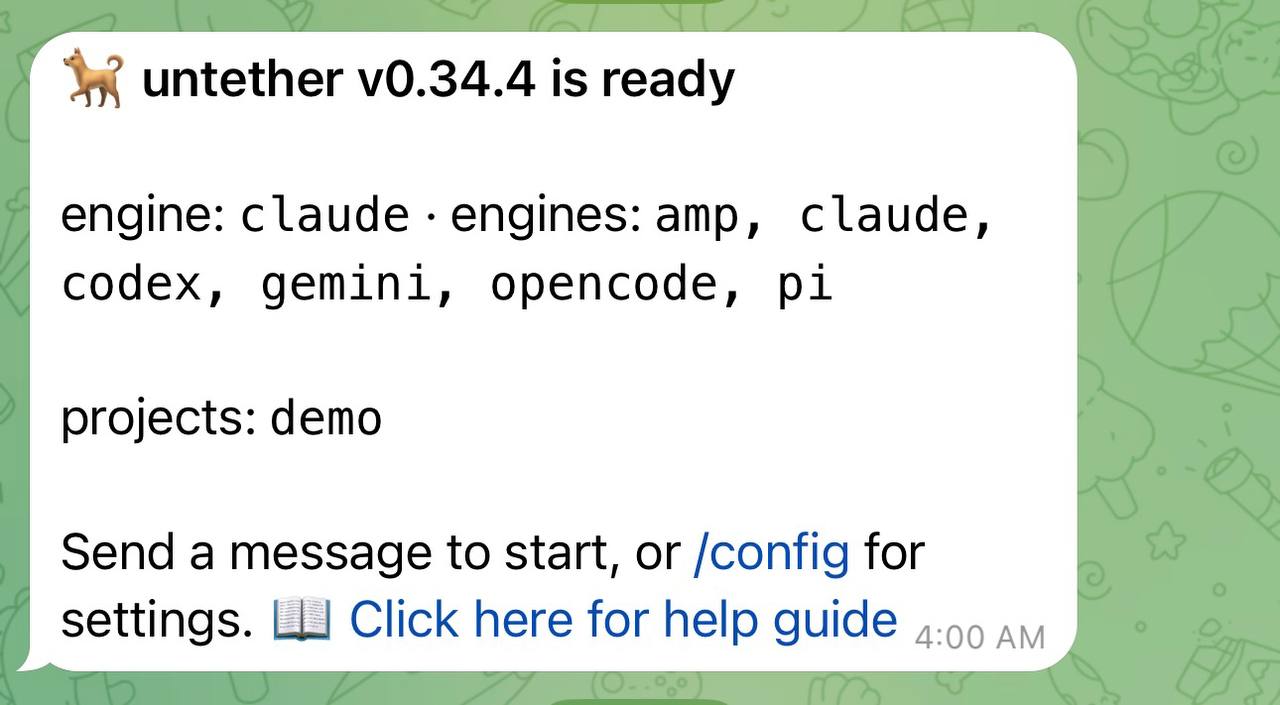
Untether
🐕 untether is ready (v0.36.0)
default engine:
codex
installed engines:codex, claude(not installed: opencode, pi, gemini, amp)
mode:assistant
directories:noneSend a message to start, or /config for settings.
📖 Click here for help | 🐛 Click here to report a bug
What just happened
Your config file lives at ~/.untether/untether.toml. The onboarding wizard populates the required fields including allowed_user_ids (your Telegram user ID — required as of v0.35.3, #377). The exact contents depend on your workflow choice:
assistant
untether config
untether config set default_engine "codex"
untether config set transport "telegram"
untether config set transports.telegram.bot_token "..."
untether config set transports.telegram.chat_id 123456789
untether config set transports.telegram.allowed_user_ids '[123456789]'
untether config set transports.telegram.session_mode "chat"
untether config set transports.telegram.show_resume_line false
untether config set transports.telegram.topics.enabled false
untether config set transports.telegram.topics.scope "auto"
toml
default_engine = "codex"
transport = "telegram"

[transports.telegram]
bot_token = "..."
chat_id = 123456789
allowed_user_ids = [123456789]  # your Telegram user ID — required (#377)
session_mode = "chat"       # auto-resume
show_resume_line = false    # cleaner chat

[transports.telegram.topics]
enabled = false
scope = "auto"
workspace
untether config
untether config set default_engine "codex"
untether config set transport "telegram"
untether config set transports.telegram.bot_token "..."
untether config set transports.telegram.chat_id -1001234567890
untether config set transports.telegram.allowed_user_ids '[123456789, 234567890]'
untether config set transports.telegram.session_mode "chat"
untether config set transports.telegram.show_resume_line false
untether config set transports.telegram.topics.enabled true
untether config set transports.telegram.topics.scope "auto"
toml
default_engine = "codex"
transport = "telegram"

[transports.telegram]
bot_token = "..."
chat_id = -1001234567890    # forum group
allowed_user_ids = [123456789, 234567890]  # required (#377) — list each teammate's Telegram user ID
session_mode = "chat"
show_resume_line = false

[transports.telegram.topics]
enabled = true              # topics on
scope = "auto"
handoff
untether config
untether config set default_engine "codex"
untether config set transport "telegram"
untether config set transports.telegram.bot_token "..."
untether config set transports.telegram.chat_id 123456789
untether config set transports.telegram.allowed_user_ids '[123456789]'
untether config set transports.telegram.session_mode "stateless"
untether config set transports.telegram.show_resume_line true
untether config set transports.telegram.topics.enabled false
untether config set transports.telegram.topics.scope "auto"
toml
default_engine = "codex"
transport = "telegram"

[transports.telegram]
bot_token = "..."
chat_id = 123456789
allowed_user_ids = [123456789]  # your Telegram user ID — required (#377)
session_mode = "stateless"  # reply-to-continue
show_resume_line = true     # always show resume lines

[transports.telegram.topics]
enabled = false
scope = "auto"
The wizard writes no permission_mode, so Claude Code starts without approval buttons until you pick a mode with /planmode — the interactive control tutorial covers that.
This config file controls all of Untether’s behaviour. You can edit it directly or change most settings from Telegram using the /config inline menu — no file editing needed.
Updating and uninstalling
To update Untether to the latest version:
uv tool upgrade untetherTo uninstall completely (CLI, config, and state), see the uninstall guide. To learn more about updates, see Update Untether.
Re-running onboarding
If you ever need to reconfigure:
untether --onboardThis will prompt you to update your existing config (it won’t overwrite without asking).
Troubleshooting
“error: missing untether config”
Run untether in a terminal with a TTY. The setup wizard only runs interactively.
“failed to connect, check the token and try again”
Make sure you copied the full token from BotFather, including the numbers before the colon.
Bot doesn’t respond to /start
If you’re still in onboarding, your terminal should show “waiting…”. If you accidentally closed it, run untether again and restart the setup.
“error: already running”
You can only run one Untether instance per bot token. Find and stop the other process, or remove the stale lock file at ~/.untether/untether.lock.
Next
Learn more about conversation modes and how your workflow choice affects follow-ups.