
File transfer
Send files to your repo or pull results back — directly from Telegram on any device.

Send files to your repo or pull results back — directly from Telegram on any device. Useful when you need to share a spec, screenshot, or config file with your agent without opening a terminal.
Enable file transfer
untether config
untether config set transports.telegram.files.enabled true
untether config set transports.telegram.files.auto_put true
untether config set transports.telegram.files.auto_put_mode "upload"
untether config set transports.telegram.files.uploads_dir "incoming"
untether config set transports.telegram.files.allowed_user_ids "[123456789]"
untether config set transports.telegram.files.deny_globs '[".git/**", ".env", ".envrc", "**/*.pem", "**/.ssh/**"]'
toml
[transports.telegram.files]
enabled = true
auto_put = true
auto_put_mode = "upload" # upload | prompt
uploads_dir = "incoming"
allowed_user_ids = [123456789]
deny_globs = [".git/**", ".env", ".envrc", "**/*.pem", "**/.ssh/**"]
Notes:
- File transfer is disabled by default.
- If
allowed_user_idsis empty, private chats are allowed and group usage requires admin privileges. - Setting
deny_globsreplaces the built-in list. The defaults also cover.env.*,*.key,id_rsa,id_ed25519,.netrc,.npmrcand.pypirc; copy the full list from Security → File transfer deny globs and add to it rather than starting from the short example above.
Upload a file (/file put)
Send a document with a caption:
/file put <path>Examples:
/file put docs/spec.pdf
/file put /happy-gadgets @feat/camera assets/logo.png
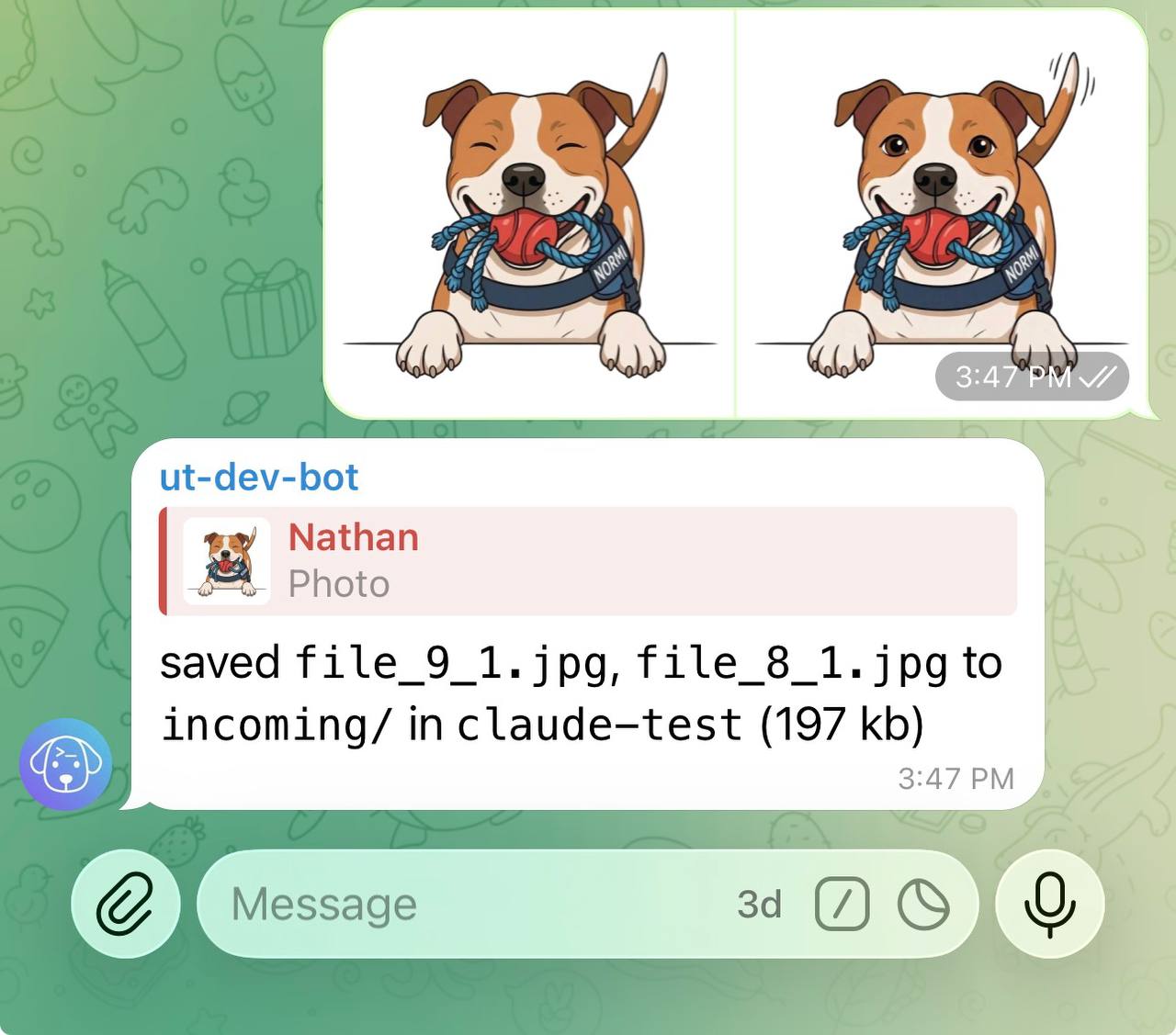
If you send a file without a caption, Untether saves it to incoming/<original_filename>.
iOS: captions on documents
Telegram on iOS doesn’t always show a caption field when sending files via the “File” picker — the file sends immediately. To add a
/file put <path>caption on iOS, send photos (which always show the caption field) or use Telegram Desktop / macOS, which shows a caption field for all file types. Alternatively, skip the caption and let files auto-save toincoming/.
If the target file already exists, Untether auto-appends a numeric suffix (_1, _2, etc.) to avoid collisions — so spec.pdf becomes spec_1.pdf. Use --force to overwrite instead:
/file put --force docs/spec.pdfUntether
saved
docs/spec.pdfinhappy-gadgets(42 kb)
Path safety
Deny globs are checked against the path you give and the path it resolves to after following symlinks inside the project, so an in-root symlink can’t route an upload into
.git/hooksor onto.env(#390). A refused path gets a reply naming the rule, such aspath denied by rule: `**/.ssh/**`, with(resolves to …)added when a symlink led there. Paths that leave the project root are refused. If you upload through a symlinked folder, the confirmation shows the real path the file landed at (e.g.inbox/a.txt→data/inbox/a.txt).
Fetch a file (/file get)
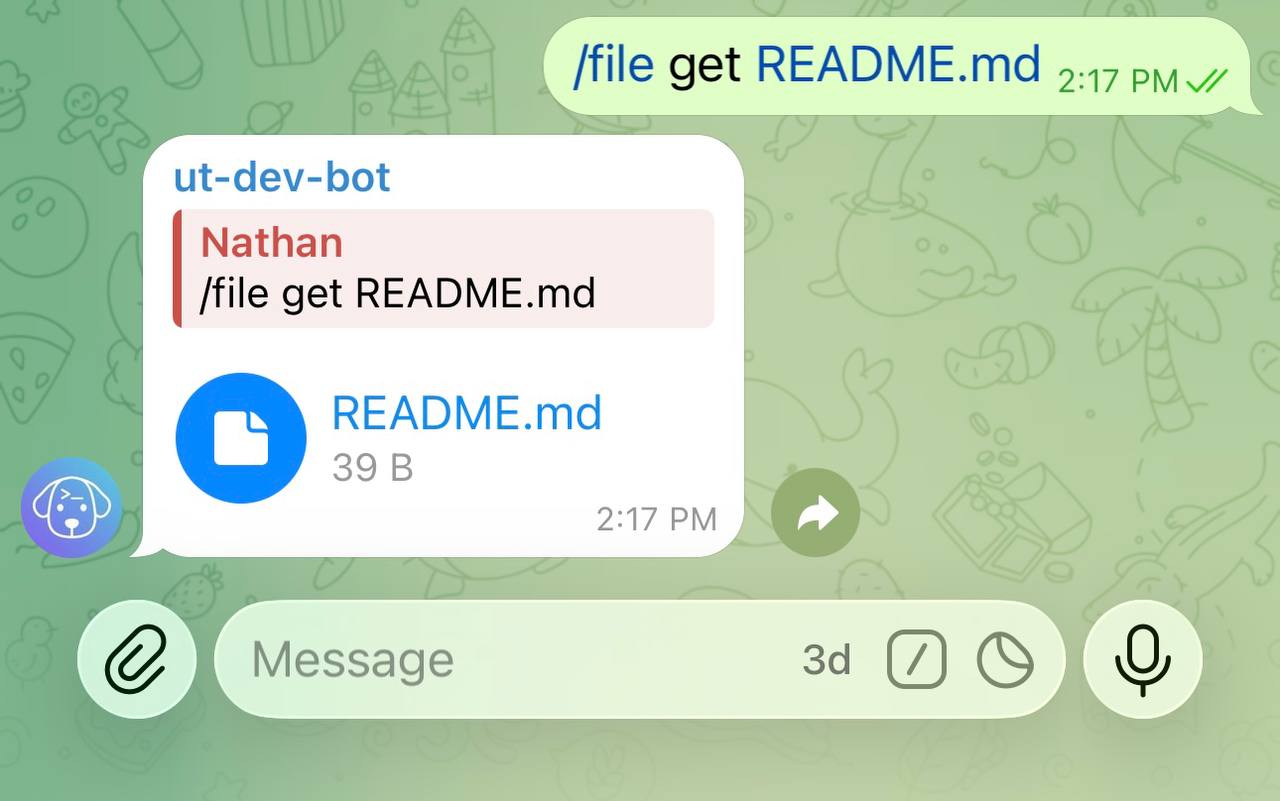
Send:
/file get <path>Directories are zipped automatically.
Path safety
The same double check applies to downloads:
/file get cfg.txtis refused whencfg.txtis a symlink to.env, and a symlinked directory is zipped with every member checked against its real path. The file (or archive) keeps the name you asked for (#390).
Untether replies with the file as a Telegram document (no caption).
Agent-initiated delivery (outbox)
Agents can send files to you automatically — plan docs, generated images, scripts, data exports — without you having to request them. The agent writes files to a special .untether-outbox/ directory during its run, and Untether delivers them as Telegram documents when the run finishes.
┌─────────────┐    writes     ┌──────────────────┐    run ends    ┌───────────┐    sends     ┌──────────┐
│  Agent CLI   │ ──────────── │ .untether-outbox/ │ ────────────── │  Untether  │ ──────────── │ Telegram │
│ (any engine) │   files      │   plan.md         │   scan + send  │  outbox    │  📎 docs    │  client  │
└─────────────┘              │   diagram.svg     │                │  delivery  │             └──────────┘
                              └──────────────────┘                └───────────┘
Every new run receives a preamble telling it about the outbox (follow-ups and steers sent into a live Claude session don’t repeat it). The agent decides which files to share — you receive them as Telegram document messages with 📎 filename (size) captions, arriving just after the final text response.
Configuration
Outbox delivery is enabled by default when file transfer is enabled:
untether config
untether config set transports.telegram.files.outbox_enabled true
untether config set transports.telegram.files.outbox_dir ".untether-outbox"
untether config set transports.telegram.files.outbox_max_files 10
untether config set transports.telegram.files.outbox_cleanup true
toml
[transports.telegram.files]
enabled = true
outbox_enabled = true            # default: true (when files.enabled)
outbox_dir = ".untether-outbox"  # relative to project root
outbox_max_files = 10            # max files per run (1–50)
outbox_cleanup = true            # delete sent files after delivery
outbox_stale_policy = "archive"  # "send" = also send older leftovers (old behaviour)
All outbox_* settings hot-reload with watch_config = true — they’re read again for every delivery. Turning files.enabled on for the first time still needs a restart.
How agents use it
Agents receive instructions in their session preamble. They create the directory and write files using their standard tools:
mkdir -p .untether-outbox
cp docs/plan.md .untether-outbox/
cp output/diagram.svg .untether-outbox/
When the run finishes successfully, Untether:
- Scans
.untether-outbox/for files (flat scan, no subdirectories) - Keeps only the files written or copied into it during this run (#924) — judged by the later of the file’s modification and status-change times, so
mvandcp -pstill count. Anything older is moved once to.untether-outbox/.skipped/and listed in a single📎 N older files were already in .untether-outbox/ …notice instead of being sent - Validates each file against deny globs, size limits, and path traversal rules
- Sends valid files as Telegram documents with
📎 filename (size)captions - Cleans up — deletes sent files and removes the empty directory
Files are sent in alphabetical order, one at a time, immediately after the agent’s text response. In a live Claude session, “this run” starts when the session started, so a background task’s file that a later wake turn reports is still delivered.
Getting older files back
/file get .untether-outbox/.skippedsends everything Untether moved aside as one zip. To have an agent re-send an older file, ask it to copy the file into.untether-outbox/again.
Security
Outbox delivery reuses the same security rules as /file get:
- Deny globs — files matching
deny_globs(by default.git/**,.envand.env.*files,.envrc, keys and certificates,.ssh/**,.netrc,.npmrc,.pypirc) are surfaced to the user as a📎 Outbox skippednotice rather than silently dropped (#524) - Size limit — files larger than 50 MB are skipped (and surfaced via the same notice)
- Symlinks — every symlink in the outbox is skipped (reported as
symlink), wherever it points - Outbox location —
outbox_dirmust be a relative path without..; an outbox that resolves outside the project (for example a symlinked.untether-outbox) is never scanned or archived (#924) - Empty files — zero-byte files are skipped too
- Older files — files left in the outbox by earlier sessions (or by agents running outside Untether) are never attached to an unrelated answer; they’re moved to
.untether-outbox/.skipped/with one notice (#924). Setoutbox_stale_policy = "send"to restore the old send-everything behaviour - File count — capped at
outbox_max_filesper delivery (default 10); extra files are listed in a notice and moved to.untether-outbox/.skipped/rather than being sent with a later run - Auto-cleanup — sent files are deleted after delivery by default, preventing sensitive data accumulation
- Failed/auto-continued runs — actual file delivery is still gated on a successful run, but skipped items (directories, deny-globbed files, oversized files) are surfaced even when the run fails or auto-continues, so you always learn what the agent intended to send. Opt out via
outbox_notify_skipped = false.
Engine compatibility
All engines support outbox delivery — any agent that can write files to disk can use it.
| Engine | Works out of the box? | Notes |
|---|---|---|
| Claude Code | Yes | Best file generation capability |
| Codex CLI | Yes | — |
| OpenCode | Yes | — |
| Pi | Yes | — |
| Gemini CLI (deprecated) | Yes | Untether runs it with --approval-mode yolo unless the chat picks Edit files, which can still write files |
| AMP (deprecated) | Yes | — |
Gemini CLI permissions (deprecated engine)
Untether runs Gemini CLI with
--approval-mode yoloby default (the Read-only choice in/config→ Approval mode lands on the same default), so it can create files for the outbox without any setup. See Interactive approval → Gemini CLI.
Limitations
- Sub-directories need opt-in — by default only files directly in
.untether-outbox/are sent; a subdirectory is archived to.untether-outbox/.skipped/and surfaced as📎 Outbox skipped(#524). Setoutbox_deliver_directories = "zip"(#628) to bundle each one into a single<name>.zipdocument instead — recursive deny-globs, symlink pruning, and per-member/total/size caps apply. - Failed runs deliver no files — the actual file send is still gated on a successful run, but the skipped-items notice fires either way so the user always learns what the agent intended to ship.
- No real-time delivery — files are sent after the run completes, not during.