
Interactive approval
When Claude Code runs in permission mode, Untether shows inline buttons in Telegram so you can approve or deny tool calls from your phone.

When Claude Code runs in permission mode, Untether shows inline buttons in Telegram so you can approve or deny tool calls from your phone.
When buttons appear
What raises a button depends on the permission mode:
- Plan mode (
plan) — when Claude Code wants to exit plan mode (ExitPlanMode) or ask you a question (AskUserQuestion). Every other tool request that reaches Untether is auto-approved by Untether. plan-auto— only questions. Untether approves the plan itself.auto,bypassPermissions— only questions; there is no plan step.dontAsk— nothing: only pre-approved tools run, and anything that would ask (questions included) is denied.- Accept edits (
/planmode off) anddefault/manual— any action the mode doesn’t cover asks for approval, whatever the tool (#749).
With Diff preview turned on in /config, Edit, Write and Bash requests in the autonomous modes also wait for a tap so you see the change first (except during the reply that follows a plan you approved).
A background agent can ask for approval after Claude has already replied — for example when a hook asks you to confirm one of its commands. That request arrives as its own message, with the same buttons, the agent’s task and the reason it’s asking. It’s sent again after 10 minutes and then every 30 minutes while it waits (each copy replaces the last), and it’s removed once you answer.
The approval buttons
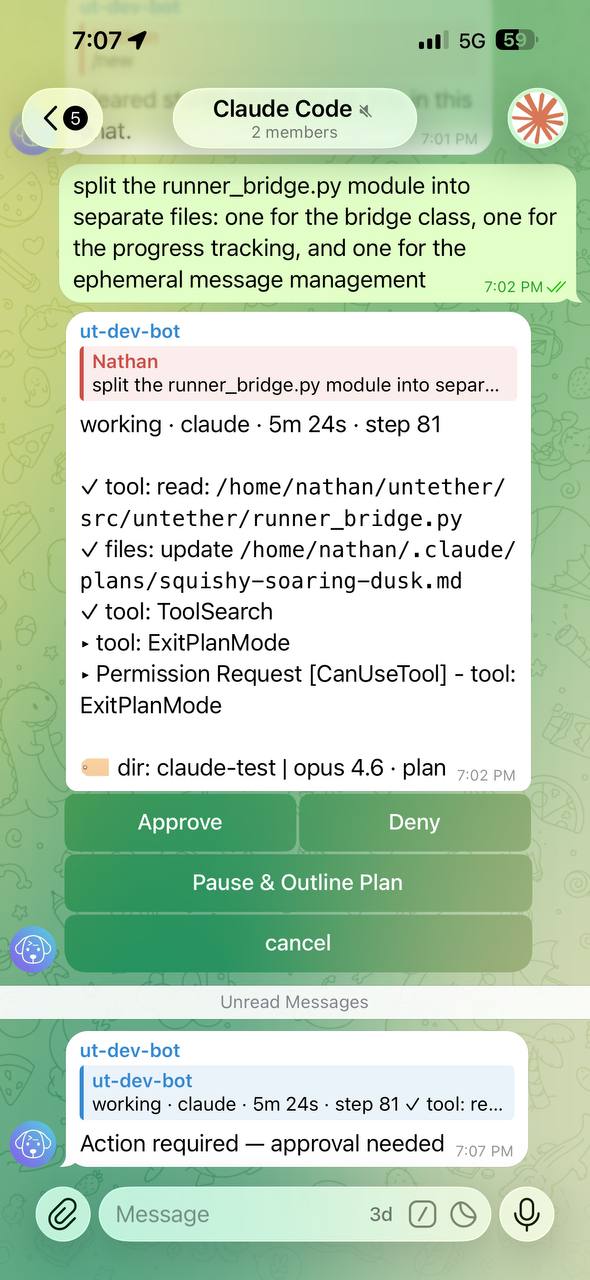
When a permission request arrives, you see a message with the tool name and a compact diff preview, plus buttons:
| Button | What it does |
|---|---|
| ✅ Approve | Let Claude Code proceed with the action (reads ✅ Approve Plan on an ExitPlanMode request) |
| ❌ Deny | Block the action and ask Claude Code to explain what it was about to do |
| 📋 Pause & Outline Plan | Stop Claude Code and require a written plan before continuing (only appears for ExitPlanMode) |
| 💬 Let’s discuss | Talk about the plan before approving or denying (only appears after outline is written) |
Buttons clear immediately when you tap them — no waiting for a spinner.
Untether
▸ Permission Request [CanUseTool] - tool: Edit (file_path=src/main.py)
📝 src/main.py
- import sys
+ import sys
+ from pathlib import Path
Diff previews
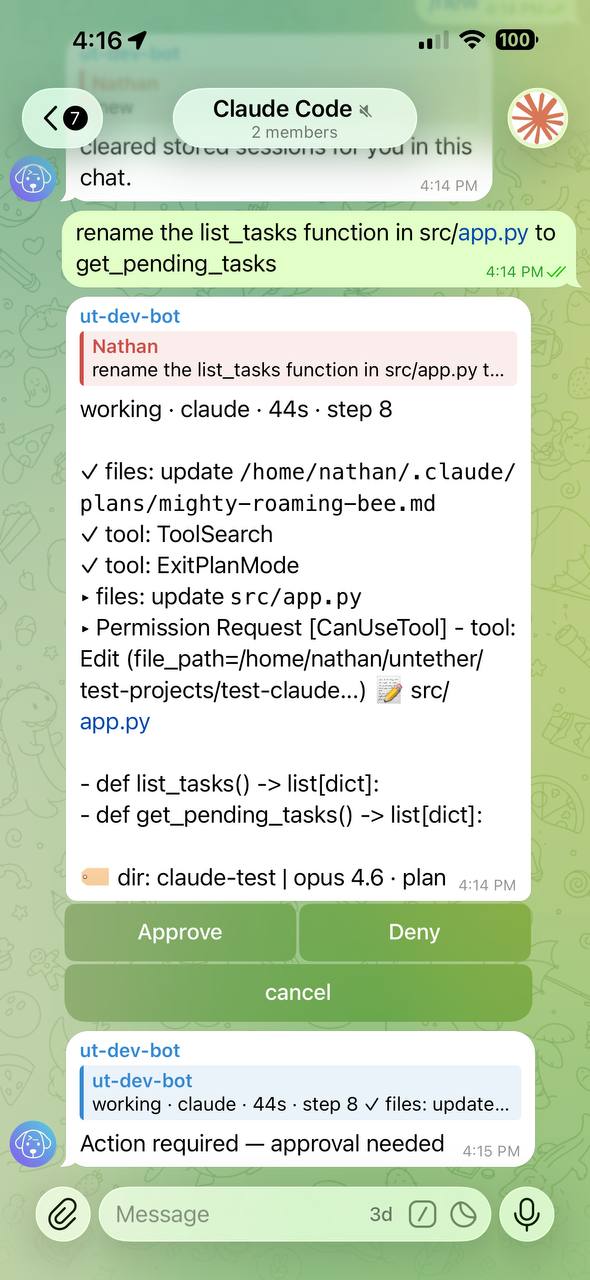
For tools that modify files, the approval message includes a compact diff, shown as a diff code block, so you can see what’s about to change before deciding:
- Edit: 📝 file path, removed lines (
- old) and added lines (+ new), up to 4 lines each - Write: 📝 file path, then the first 8 lines of content to be written (as
+lines) - Bash:
$ command(up to 200 characters)
Long lines are cut at 60 characters, and a …(N more added) line says how much was left out. Before v0.36.0 the preview was rendered as Markdown, so an added + x line could show up as a - x bullet; it is now a fenced block that keeps every line as written (#855).
This lets you make informed approve/deny decisions without leaving Telegram.
You can toggle diff previews on or off via /config → Diff preview. Approval messages include the diff unless you switch it off; when switched off they show the tool name and buttons only — no inline diffs. Switching it on also makes Edit, Write and Bash wait for a tap in the autonomous modes. Useful on slow connections or when you trust the agent enough to skim by tool name alone.
Untether
▸ Permission Request [CanUseTool] - tool: Edit (file_path=src/main.py)
📝 src/main.py
- import sys
+ import sys
+ from pathlib import Path
After plan approval
When you approve a plan outline (see Plan mode), diff previews are skipped for the rest of that reply — tools are auto-approved since you already reviewed the plan. Your next message gets diff previews again.
Answering questions
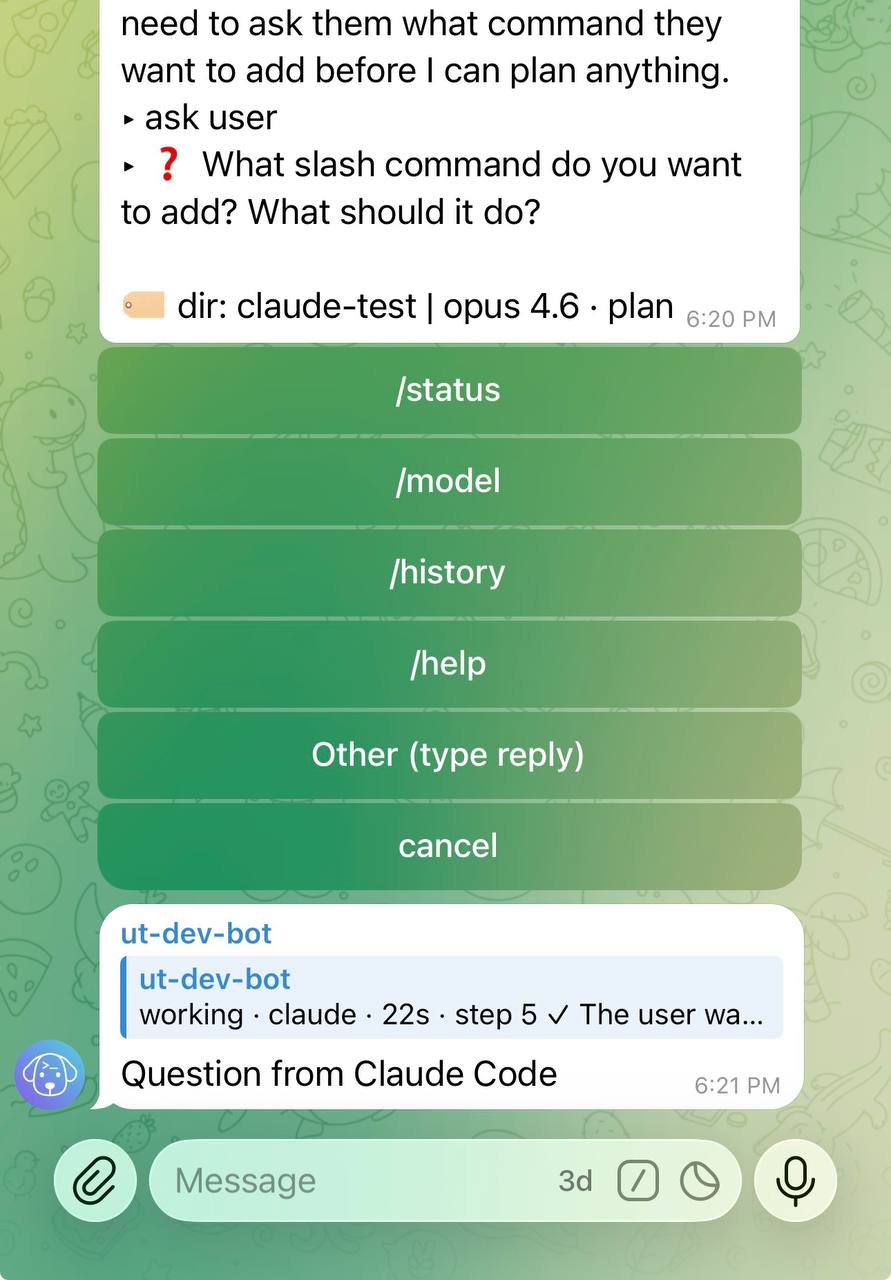
When Claude Code calls AskUserQuestion, Untether renders the question with interactive option buttons in Telegram:
- Option buttons — one per row, up to four. Tap any option to answer instantly. Claude Code receives your choice and continues.
- “Other (type reply)” — tap this to type a custom answer. Send your reply as a regular message and Untether routes it back to Claude Code.
- Multi-question flows — if Claude Code asks multiple questions, they appear one at a time (e.g. “1 of 3”). Answer each to step through the sequence.
Toggle ask mode on or off via /config → Ask mode. When off, questions are auto-denied and Claude Code proceeds with defaults.
Untether
❓ Which test framework should I use?
Tapping a button twice, or too late
Each request can be answered once. A second tap (yours or someone else’s in a group) doesn’t send anything to Claude Code; you get a popup instead (#685, #684):
- Already answered — plus a silent
ℹ️ Already answered — approved(ordenied, …) line saying what the first tap did - No longer needed — Claude Code withdrew the request, for example because the turn ended; its buttons are removed
- This request has expired — the request timed out, or Untether no longer knows about it (for example after a restart)
Buttons only work in the chat they were posted in: a forged approval sent from another chat reads as expired and changes nothing (#388).
An unanswered request is denied automatically after 5 minutes (⏱️ Timed out: auto-denied after 5 min). Untether checks for this when another approval request arrives, so a single request on its own waits for you.
Who can answer in a group
In a chat with several allowed users, any of them can answer any request by default. Set approval_originator_only = true under [transports.telegram] to accept approvals and question answers only from the person whose message started the run; anyone else gets Only the person who started this run can answer this. Cron, webhook, /at and loop runs have no originator, so any allowed user can still answer them (#388). See Group chat.
Push notifications
When approval buttons appear, Untether sends a separate notification message so you don’t miss it — even if your phone is locked or you’re in another app.
Ephemeral cleanup
Approval-related messages (notifications, button messages) are automatically deleted when the run finishes, keeping your chat clean.
Auto-approve configuration
Which tools need approval depends on the permission mode. In plan mode only ExitPlanMode and AskUserQuestion reach you (in plan-auto and auto, only AskUserQuestion); every other request that reaches Untether is auto-approved by Untether, unless Diff preview is on. In Accept edits (and default/manual set in untether.toml), every tool Claude Code would prompt for becomes an Approve / Deny message. Allow rules in your Claude Code settings, or [engines.claude] allowed_tools, pre-approve tools in any mode.
To change this behaviour, adjust the permission mode. See Plan mode for details.
Engine-specific approval policies
Claude Code is the only engine with interactive mid-run approval buttons. Other engines offer pre-run policies that control what the agent is allowed to do before it starts:
Codex CLI — Approval policy
Toggle via /config → Approval policy:
| Policy | CLI flag | Behaviour |
|---|---|---|
| Full auto (default) | (none) | Codex uses your own Codex sandbox setting (sandbox_mode in ~/.codex/config.toml, or the project’s trust level). For a trusted project that is usually workspace-write, so Codex can edit files there |
| Safe | codex exec --sandbox read-only | Reads and read-only commands only. Edits and writes fail and are reported back to the model; shell network access is blocked |
This is a pre-run policy — Codex doesn’t pause mid-run to ask for permission. codex exec never asks for approval, so the policy picks Codex’s sandbox before the run starts.
Safe blocks every sandboxed write
The read-only sandbox blocks all filesystem writes from Codex’s commands, not just edits inside the project: caches (
.pytest_cache,__pycache__,npm/uvcaches), build output and/tmptoo. Tests, builds and package installs fail in Safe. Switch the chat to Full auto when you want Codex to run them. MCP tools run outside Codex’s command sandbox, so Safe does not restrict what an MCP server does.
Before v0.36.0
Safe used to pass
--ask-for-approval untrusted.codex execnever applied that flag, so Safe ran exactly like Full auto, and codex-cli 0.149.0+ rejects it outright, so every Safe run failed at startup (#830).
Gemini CLI — Approval mode
Deprecated
Gemini CLI is deprecated in Untether and no longer supported: it is still included, but gets no fixes and may be removed in a future release. See Switch engines.
Toggle via /config → Approval mode:
| Mode | CLI flag | Behaviour |
|---|---|---|
| Read-only (shown when no mode is set) | --approval-mode yolo | Not actually read-only — see the warning below |
| Edit files | --approval-mode auto_edit | File reads and writes OK, shell commands blocked |
| Full access | --approval-mode yolo | All tools approved — full autonomy |
This is also a pre-run policy. Gemini CLI doesn’t have interactive mid-run approval.
Read-only runs with full access
With no approval mode set, Untether starts Gemini CLI with
--approval-mode yolo, so every tool is approved. The Read-only button in/configonly clears the chat’s setting, which lands back on that same default; it does not restrict Gemini. Use Edit files if you need shell commands blocked. The Gemini engine is deprecated and no longer receives fixes, so it won’t get a read-only mode.
Both policies persist per chat via /config and can be cleared back to the default. See Inline settings for the full /config menu reference.
Related
- Plan mode — control when and how approval requests appear
- Inline settings —
/configmenu for toggling approval policies - Commands & directives — full command reference
- Claude Code runner — technical details of the control channel